If you’ve ever submitted a file for laser cutting and been told it can’t be cut as-is, you’re not alone. It happens constantly, and it almost always comes down to the same handful of issues: open paths, wrong units, duplicate lines, or unnecessary elements that confuse the cutting software. The good news is that all of these are easy to fix once you know what to look for.
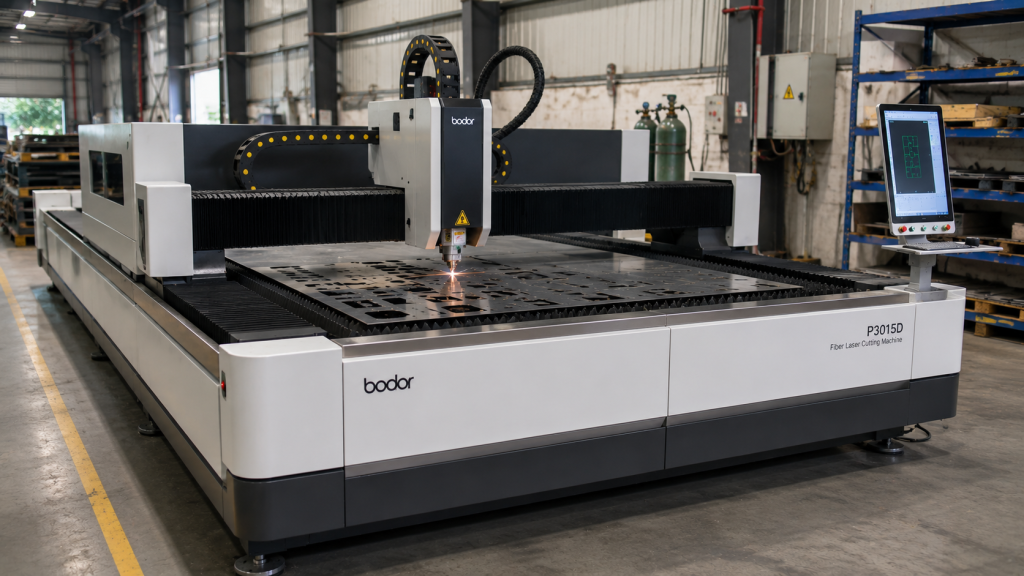
At 1Laser in Kempton Park, we work with DXF files every single day. We’ve seen the full range, from perfectly prepared files that go straight into production, to files that need significant rework before we can even nest them. This guide exists to help you land firmly in the first category, get your parts cut accurately and on time, and avoid the back-and-forth that slows everything down.
What Is a DXF File and Why Does Laser Cutting Require One?
DXF stands for Drawing Exchange Format. It’s a 2D vector file format originally developed by Autodesk as a way to share drawing data between different CAD programs. In laser cutting, it’s the standard format because it describes geometry, lines, arcs, curves, and shapes using mathematical data rather than pixels. That matters enormously for precision work.
Unlike a JPG or PNG image, a DXF file doesn’t lose resolution when scaled. The laser cutting software reads the geometry directly from the file and translates it into cutting instructions for the machine. What you draw is exactly what gets cut, which is why getting the file right before submission is so important.
What Software Can You Use to Create a DXF File?
You don’t need to be an engineer or own expensive software to produce a usable DXF file. Here are the most common options, from professional CAD tools to free alternatives.
AutoCAD is the industry standard for technical drawing and produces extremely clean DXF exports. If you’re working in a professional or engineering environment, this is likely already what you’re using.
Fusion 360 by Autodesk is a powerful 3D CAD and CAM tool with a free tier for personal and small business use. You can model your part in 3D and then export a flat DXF of the face you want cut. It’s excellent for precision parts.
SolidWorks is widely used in manufacturing and engineering environments and exports clean, accurate DXF files from flat sheet bodies and sketches.
Inkscape is a free, open-source vector graphics tool that works well for decorative or artistic laser cutting projects. It’s not a CAD program, so it’s better suited to flat designs, signage, and décor than to precision engineering parts. It exports DXF and is perfectly usable for 1Laser’s process.
CorelDRAW and Adobe Illustrator are graphic design tools that can export DXF files and are commonly used for signage, decorative metalwork, and artistic cut profiles.
If you don’t have access to any of these or aren’t comfortable creating your own file, 1Laser offers a CAD and design service. Send through your sketch, dimensions, or idea and the team will produce a production-ready DXF for you.
The Golden Rules of a Good DXF File
Before getting into the detail, here are the non-negotiable requirements that every DXF file submitted for laser cutting must meet.
1:1 scale in millimetres. Your file must be drawn at actual size. If your finished part needs to be 150mm wide, the drawing must be 150mm wide. Not 150 inches, not 15cm in a different unit system. Millimetres, actual size, always. When in doubt, double-check your software’s units before exporting.
All paths must be closed. A closed path is one where every line and curve connects perfectly to the next, forming a complete, unbroken outline. Open paths, where the start and end points don’t meet, or where two lines appear to connect but don’t quite touch at the vertex, cause errors in the cutting software. The machine doesn’t know where to start or stop cutting, and the result is either a rejected file or a mis-cut part.
One line per edge. Duplicate or overlapping lines are one of the most common file errors. They look fine on screen because they sit exactly on top of each other, but the cutting software reads them as two separate cut paths, which means the laser passes over the same line twice. This wastes time, can damage your material, and affects edge quality. Most CAD programs have a tool to detect and remove duplicates. In AutoCAD it’s called OVERKILL. Use it before every export.
No extra elements. Your DXF should contain only the cut profiles and nothing else. No dimensions, no annotations, no title blocks, no construction lines, no text, no hatching. All of these need to be deleted or moved to a non-cutting layer before you export. The laser cutting software will attempt to cut everything it finds in the file, and that includes your dimension lines and labels.
Minimum hole sizes. As a general rule, the diameter of any hole you want cut should be at least equal to the material thickness for steel up to 4mm. For thicker material, a minimum diameter of 1.5 times the material thickness is a safer guideline. Holes smaller than this are difficult to cut cleanly and may not be achievable on thinner, more delicate materials.
Step by Step: Preparing Your File for Submission
Here’s the practical process to follow before you submit your DXF to 1Laser.
Step 1: Draw or import your design at 1:1 scale
Set your document units to millimetres before you start drawing. If you’re working from an imported sketch or image, trace it carefully using vector tools rather than embedding the raster image into the file. Everything in the final DXF must be vector geometry, not a linked or embedded image.
Step 2: Check all paths are closed
Go through each profile in your drawing and verify that every outline is a closed, continuous path. In Inkscape you can select a path and check its properties. In AutoCAD and Fusion 360, use the PEDIT or Join commands to merge connected line segments into continuous polylines. Pay particular attention to corners and curves, these are where gaps most commonly occur.
Step 3: Remove duplicate lines
Run OVERKILL in AutoCAD or use your software’s equivalent cleanup tool to find and remove any duplicate or overlapping entities. If you’re working in Inkscape or Illustrator, zoom in carefully to corners and intersections and look for doubled lines.
Step 4: Delete everything that isn’t a cut line
Remove all dimensions, annotations, centrelines, title blocks, reference geometry, and text from the file. If you need to retain this information for your own records, save it in a separate file or layer before exporting the cutting file.
Step 5: Export as DXF
Export your file in a standard DXF format. AutoCAD R12 or R14 DXF is widely compatible and is the safest choice if your software offers version options. Make sure units are set to millimetres in the export dialogue. Name the file clearly, ideally including the part name, material, thickness, and quantity you need.
Step 6: Do a final visual check
Open the exported DXF in a viewer or re-import it into your software and compare it to your original drawing. Confirm the scale looks correct, all profiles are present, and nothing unexpected has appeared or disappeared in the export process. This step catches the majority of export-related issues before the file reaches the cutting floor.
Common Mistakes and How to Avoid Them
Submitting at the wrong scale is more common than you’d think, particularly when files are created in one unit system and exported in another. Always confirm the actual dimensions in the exported file before submission.
Open paths at corners happen when line segments are drawn individually and snapped visually rather than with precise endpoint connections. Use your software’s snap-to-endpoint function when drawing to ensure every connection is exact.
Text that hasn’t been converted to paths is another frequent issue. If your design includes lettering or numbers that need to be cut, the text must be converted to outlines or paths before export. Live text is invisible to the cutting software.
Islands without bridges is something to be aware of if your design includes enclosed shapes inside other shapes, like a letter O, a filled circle inside a plate, or a decorative screen pattern. Any fully enclosed inner region will fall out of the material when cut. If you need those inner sections to stay connected to the outer part, you need to add small bridges, narrow uncut sections, to hold them in place.
Forgetting to specify material and thickness isn’t a DXF issue, but it’s a common submission mistake. Always include the material type, thickness, and quantity you need when you send your file. Without this information, an accurate quote isn’t possible.
What Happens to Your File Once 1Laser Receives It?
Once your DXF arrives, the team reviews it to confirm it’s cut-ready. The parts are then nested, which means they’re arranged on the sheet material in the most efficient pattern possible to minimise waste and keep your cost down. This is done automatically using nesting software, which is another reason why clean, correctly scaled geometry matters so much. Files with errors don’t nest properly, and poorly nested parts cost more to cut.
Once the file is reviewed and nested, cutting typically happens within one to two days, with delivery often going out the next day.
Not Sure About Your File? Just Ask.
If you’re not confident your DXF is ready, don’t guess and submit. Send it through to 1Laser at info@1laser.co.za with a note about what you’re trying to achieve, and the team will take a look and let you know if anything needs fixing before it goes into production.
And if you’re starting from scratch without a DXF at all, a sketch, a photo of your idea, or even a rough set of dimensions is enough to get the CAD and design service started.
Visit 1laser.co.za to upload your file and get a quote, or contact the team directly at +27 (0) 82 416 7711.
1Laser is based at 6 Tungsten Road, Isando, Kempton Park. We offer CNC laser cutting, bending, laser marking, and CAD design services to clients across South Africa.