
Laser Cutting Stainless Steel in South Africa: What You Need to Know Before You Order
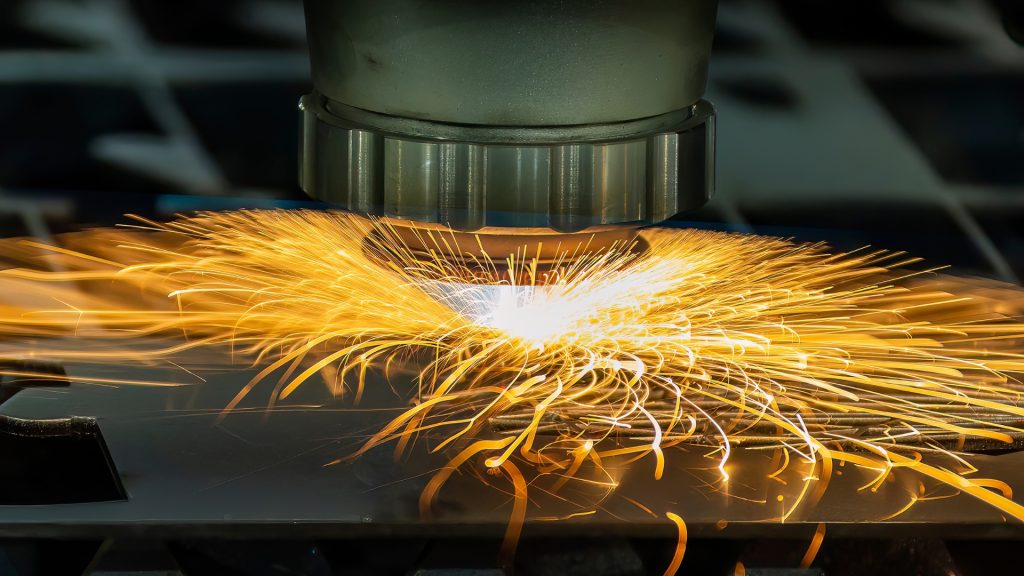
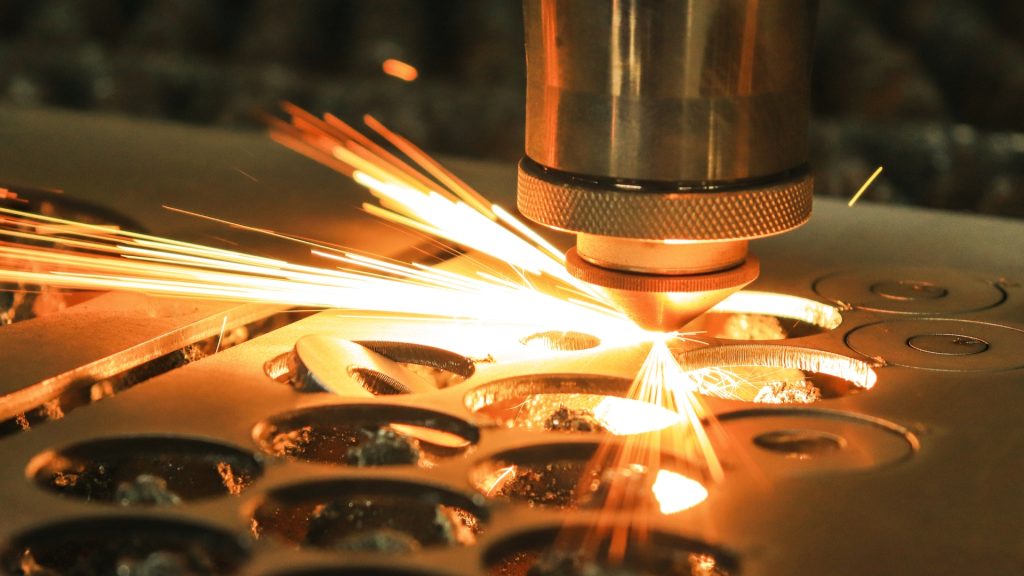
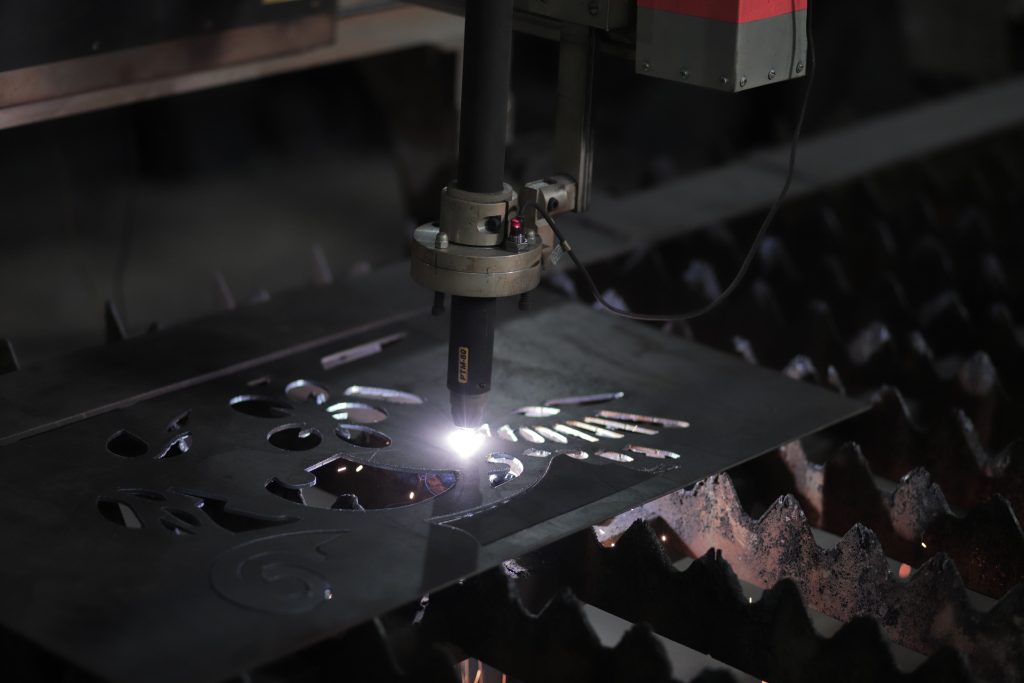
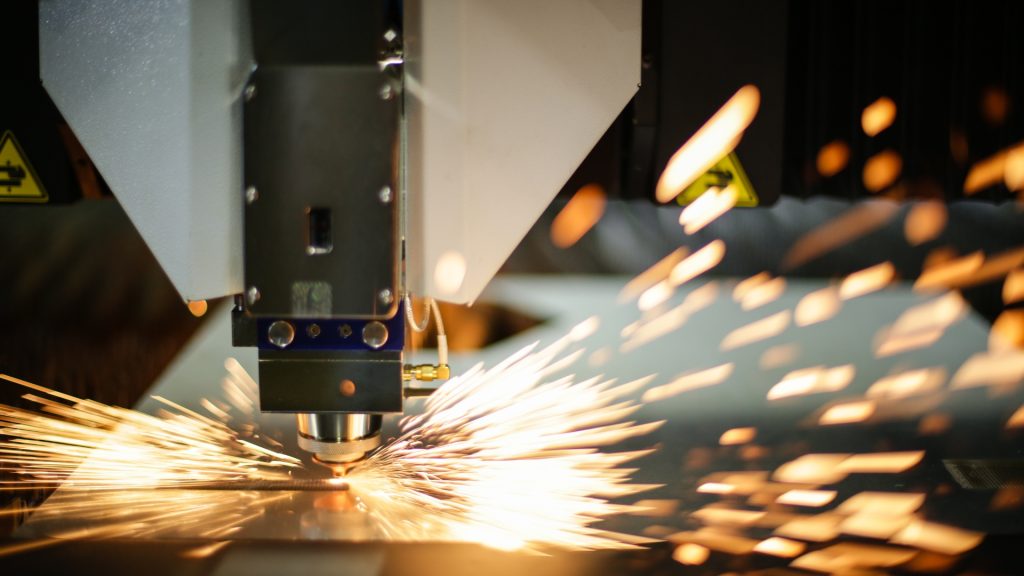
Stainless steel is one of the most widely used materials in South African manufacturing, fabrication, and construction. It is strong, corrosion resistant, hygienic, and visually appealing in a way that mild steel simply cannot match. It is also one of the most demanding materials to cut accurately, which is why choosing the right laser cutting service for stainless steel work matters more than it does for most other materials. This guide covers what makes stainless steel different to cut, which grades are most commonly used in South Africa, what affects the quality of a stainless steel laser cut, and what to look for when choosing a service provider. Why Stainless Steel Is Different to Laser Cut Stainless steel shares many characteristics with mild steel from a laser cutting perspective but there are several important differences that affect how the material behaves under the laser beam and what the finished cut looks like. The chromium content that gives stainless steel its corrosion resistance also affects how the material responds to heat. Stainless steel conducts heat less efficiently than mild steel, which means heat builds up more rapidly in the cutting zone. If this is not managed correctly through the right combination of laser power, cutting speed, and assist gas, the result is an excessive heat-affected zone along the cut edge, discolouration, and in some cases warping or distortion of the part. A well-set-up laser cutting machine running the correct parameters for the specific grade and thickness of stainless steel being cut produces a bright, clean edge with minimal discolouration and a very small heat-affected zone. This is the standard you should expect from a quality laser cutting service, and it is the standard that 1Laser in Isando, Kempton Park holds its stainless steel cutting to. The Assist Gas Makes a Significant Difference One of the most important variables in stainless steel laser cutting is the assist gas used during the cutting process. The assist gas blows molten material out of the cut kerf and affects both the quality of the cut edge and the level of oxidation on the finished surface. Nitrogen is the preferred assist gas for stainless steel laser cutting where a bright, oxide-free edge is required. Because nitrogen is an inert gas it does not react with the stainless steel surface during cutting, which means the cut edge retains the clean, bright appearance of the base material without the brown or blue oxidation that oxygen-assisted cutting produces. For parts that will be visible in the finished product, particularly in food processing, medical, or architectural applications, nitrogen-cut stainless steel is almost always the correct specification. Oxygen can be used for stainless steel cutting at higher thicknesses where the exothermic reaction it produces helps drive the cut through material that nitrogen alone would struggle with. The trade-off is an oxidised edge that requires additional finishing if a clean appearance is needed. For structural components where edge appearance is secondary to dimensional accuracy, oxygen-assisted cutting is a cost-effective option. Common Grades of Stainless Steel Used in South Africa Not all stainless steel is the same, and the grade you specify affects both the cutting parameters required and the performance of the finished part in its intended application. Grade 304 is the most commonly used stainless steel in South Africa across a wide range of industries. It offers good corrosion resistance, is readily available, and cuts cleanly on a well-maintained laser cutting machine. It is the default choice for most general fabrication, food processing equipment, kitchen equipment, and architectural applications where the environment does not involve chloride exposure. Grade 316 offers significantly better corrosion resistance than 304, particularly in environments where chloride exposure is a concern. This makes it the preferred choice for coastal applications, marine equipment, chemical processing, and medical devices. It is slightly more expensive than 304 and requires careful parameter management during laser cutting to achieve the same edge quality, but for applications where its enhanced corrosion resistance is needed there is no practical substitute. Grade 430 is a ferritic stainless steel that is less expensive than the austenitic grades like 304 and 316 but offers lower corrosion resistance and is less commonly used for precision fabrication. It is sometimes specified for decorative applications and automotive trim where its magnetic properties and lower cost make it attractive. Grade 409 and 441 are both commonly used in the exhaust and automotive sector in South Africa due to their heat resistance and cost-effectiveness relative to higher-grade austenitic steels. If you are unsure which grade is appropriate for your application, the 1Laser team can advise based on the intended use, environment, and performance requirements of your parts before you commit to a material specification. Thickness Ranges for Stainless Steel Laser Cutting The thickness of stainless steel that can be accurately laser cut depends on the power of the laser cutting machine being used. As a general guide for fibre laser cutting machines operating at the power levels used in modern South African laser cutting facilities, the following thickness ranges apply. Thin sheet stainless steel from 0.5mm to 3mm is where laser cutting produces its most impressive results. The cut is fast, the edge quality is excellent, and dimensional accuracy is at its tightest. This range covers most sheet metal fabrication, food processing equipment panels, catering equipment, and decorative screening applications. Medium gauge stainless steel from 3mm to 8mm covers the range most commonly used for structural brackets, machine guards, industrial equipment components, and architectural elements. Cut quality at this range is still very good on a well-maintained machine but cutting speed reduces and the importance of correct parameter setup increases. Thick stainless steel from 8mm to 20mm and beyond is where laser cutting requires the most power and the most careful parameter management. Edge quality at this range is more variable and some applications may benefit from a finishing operation after cutting to achieve the required surface quality. For very thick stainless steel where edge finish is critical, discussing the application